Getting Started with Worqlo
Learn how to log in and access Worqlo’s conversational chat interface.
Logging In
- Navigate to your Worqlo instance URL
- Enter your email address
- Enter your password
- Click the Login button
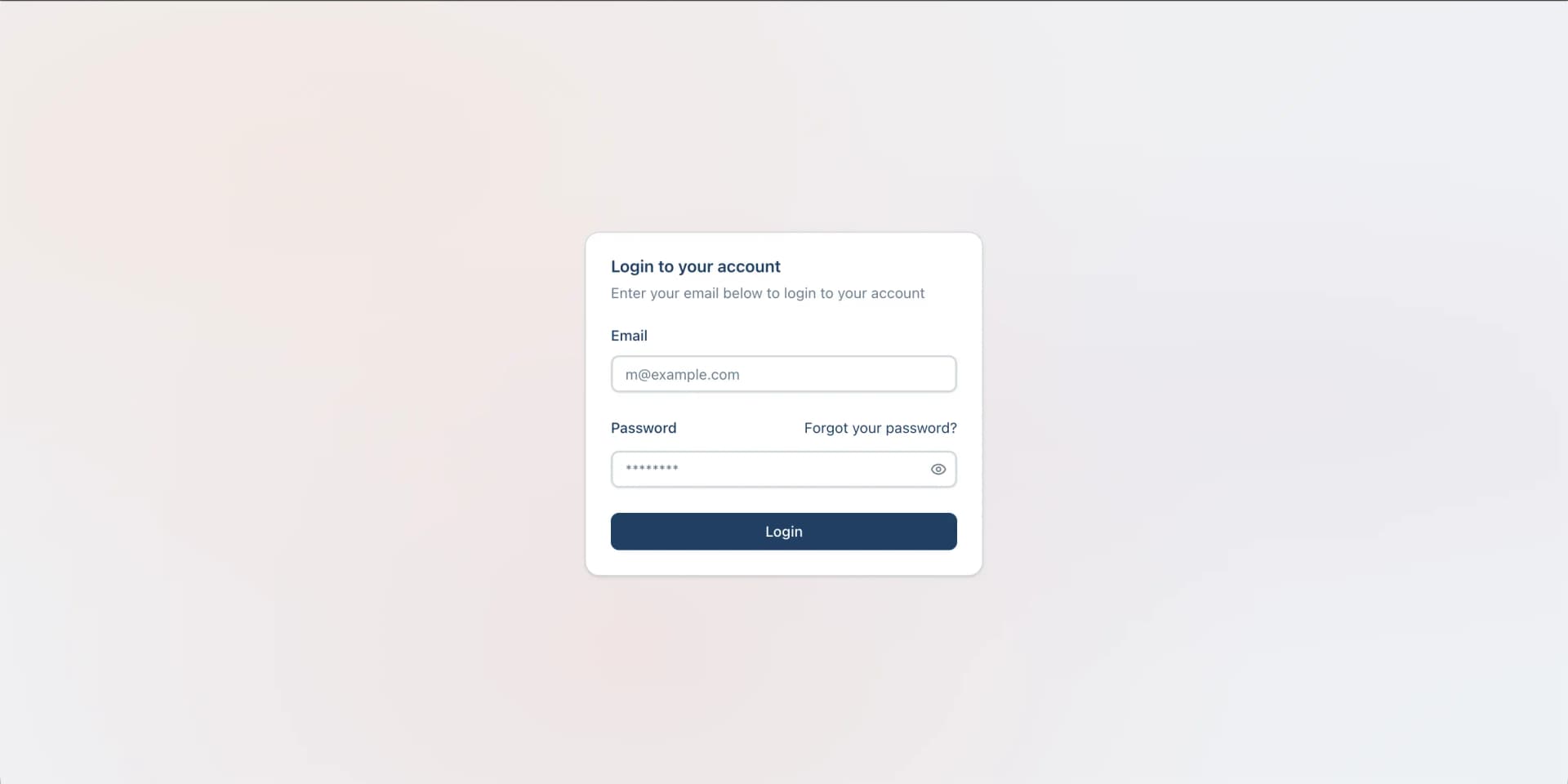
If you forgot your password, click “Forgot your password?” to reset it.
Note: After logging in, users with USER role will be automatically redirected to the chat interface.
The Chat Interface
After logging in, you’ll see the Worqlo chat interface:
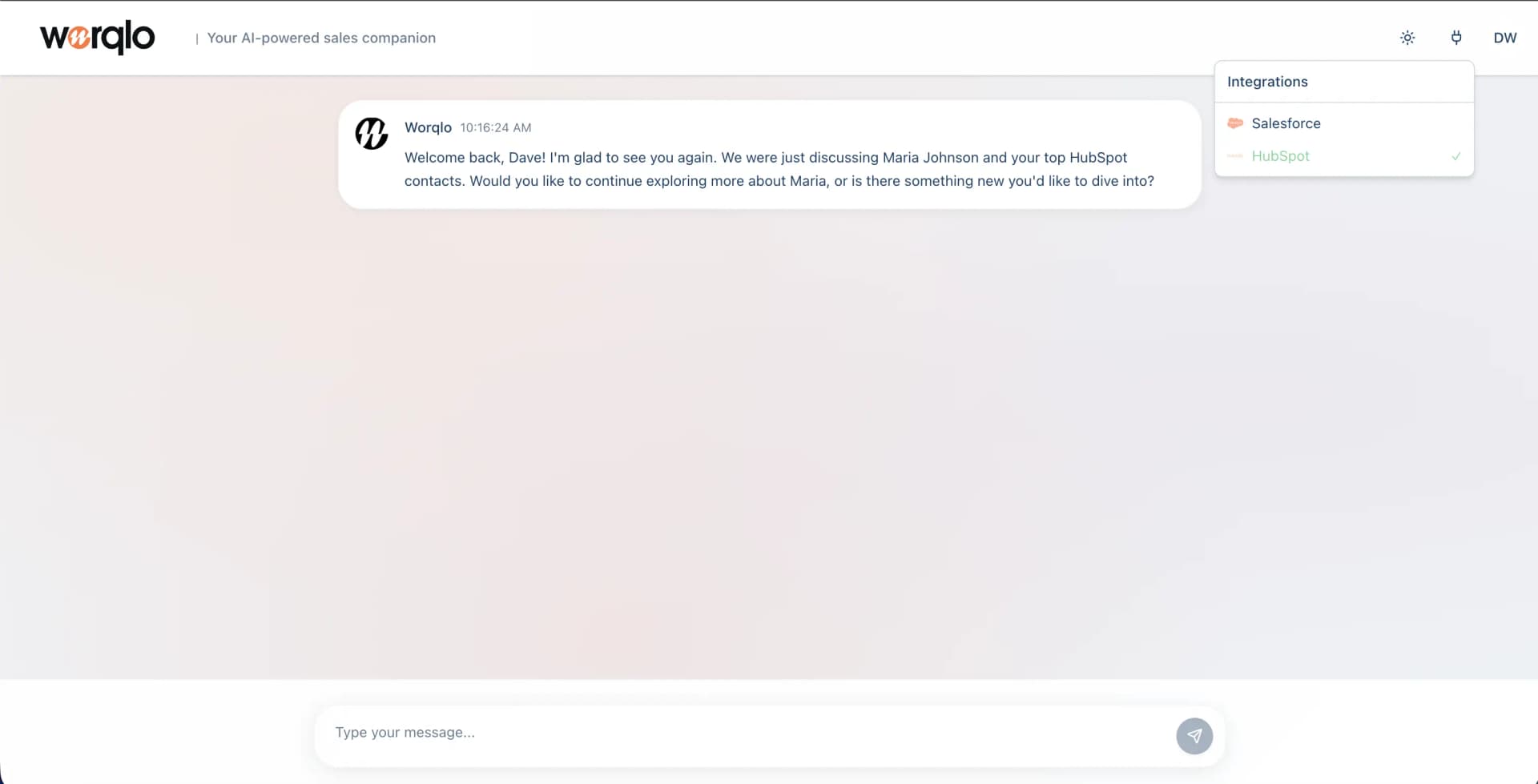
Understanding the Interface
Header:
- Worqlo logo - Click to return to main chat
- Tagline - “Your AI-powered sales companion”
- Integrations - Dropdown to view connected data sources (Salesforce, HubSpot, etc.)
Chat Area:
- Welcome message - Worqlo greets you and may reference previous conversations
- Message history - All your conversations are saved here
- Input field - Type your questions or requests here
Send Button:
- Orange paper airplane icon - Click to send your message
Your First Conversation
- Type your question in the input field at the bottom
- Press Enter or click the send button (orange icon)
- Wait for Worqlo’s response
Example First Questions
Try asking:
- “What’s our current pipeline value?”
- “Show me deals that haven’t been updated in 7 days”
- “What’s the win rate this quarter?”
- “Which rep has the most active deals?”
Next Steps
- Using the Chat Interface - Learn more about the interface features
- Asking Questions - Discover how to ask effective questions
Last updated on