Getting Started with Worqlo Administration
Learn how to log in, navigate the admin interface, and understand the Overview dashboard.
Logging In
- Navigate to your Worqlo instance URL
- Enter your email address
- Enter your password
- Click the Login button
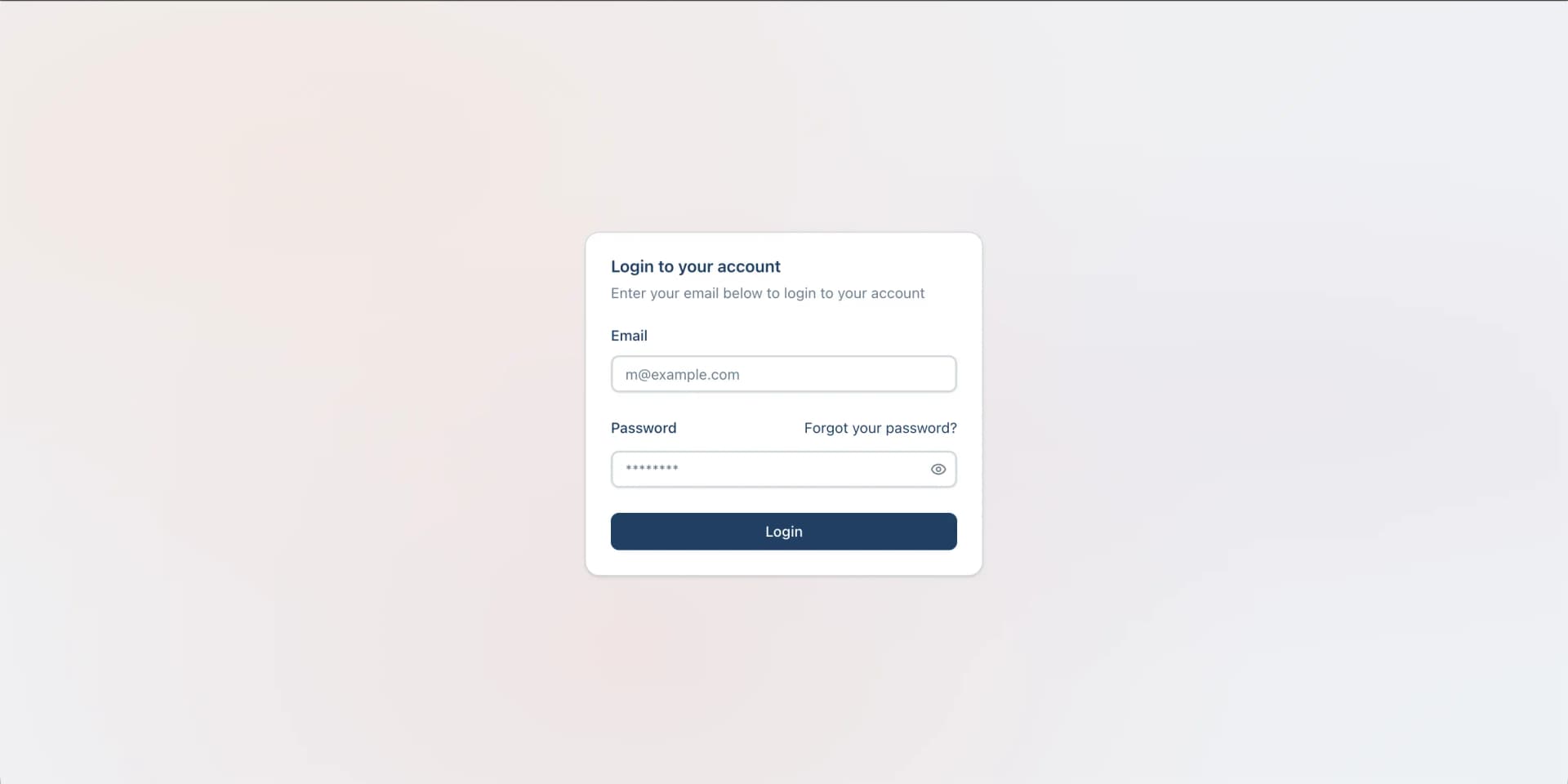
If you forgot your password, click “Forgot your password?” to reset it.
Note: After logging in, users with ADMIN role will see the Overview dashboard. Users with USER role will be redirected to the chat interface.
Overview Dashboard
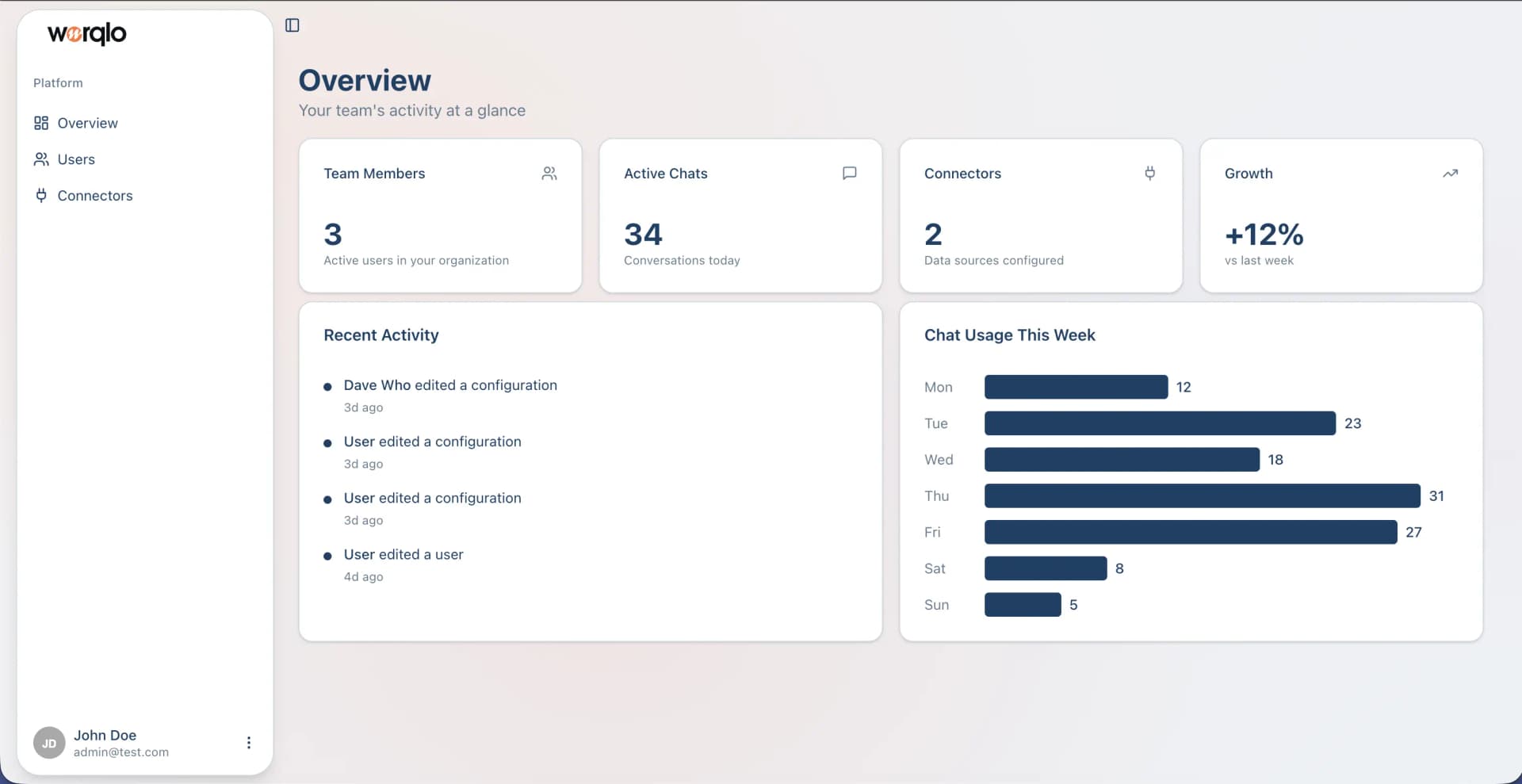
After logging in as an administrator, you’ll see the Overview dashboard with key metrics:
Understanding the Dashboard
Top Row Metrics:
- Team Members - Number of active users in your organization
- Active Chats - Conversations happening today
- Connectors - Data sources you have configured
- Growth - Performance compared to last week
Bottom Section:
- Recent Activity - Latest actions taken in the system
- Chat Usage This Week - Visual chart showing daily chat activity
Navigation
The left sidebar provides access to:
- Overview - Dashboard with key metrics
- Users - Manage organization users
- Connectors - Configure data source connections
Next Steps
- Managing Users - Learn how to add and manage users
- Setting Up Connectors - Connect your data sources
Last updated on