Managing Users
Learn how to view, add, and manage users in your Worqlo organization.
Viewing Users
- Click Users in the left sidebar
- You’ll see a table of all organization users
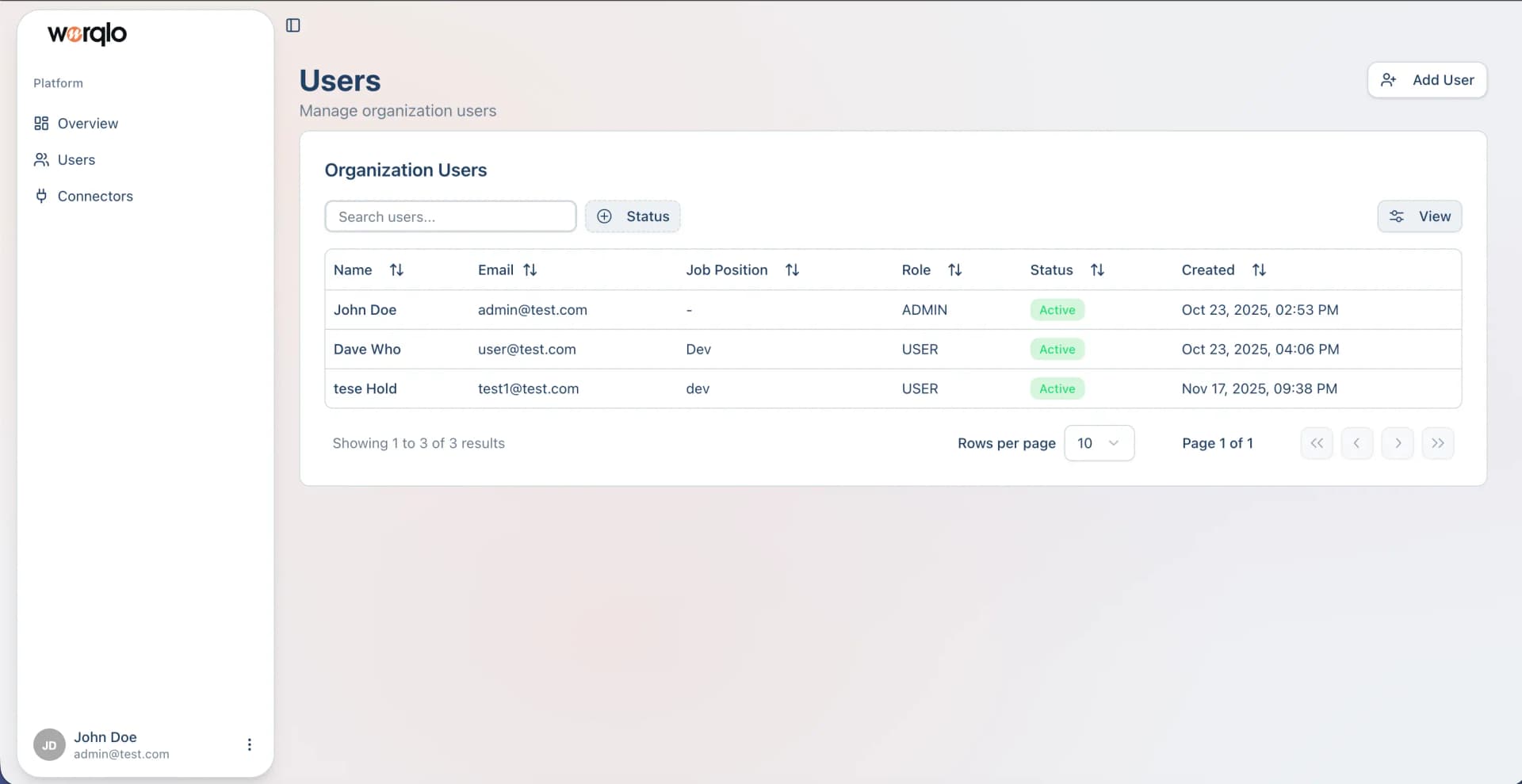
User Table Information
The table displays:
- Name - User’s full name
- Email - User’s email address
- Job Position - User’s role/title
- Status - Active (green badge) or Inactive
- Created - Account creation date and time
Searching and Filtering
- Use the Search users… field to find specific users
- Click Status button to filter by user status
- Use pagination controls at the bottom to navigate through pages
Adding a New User
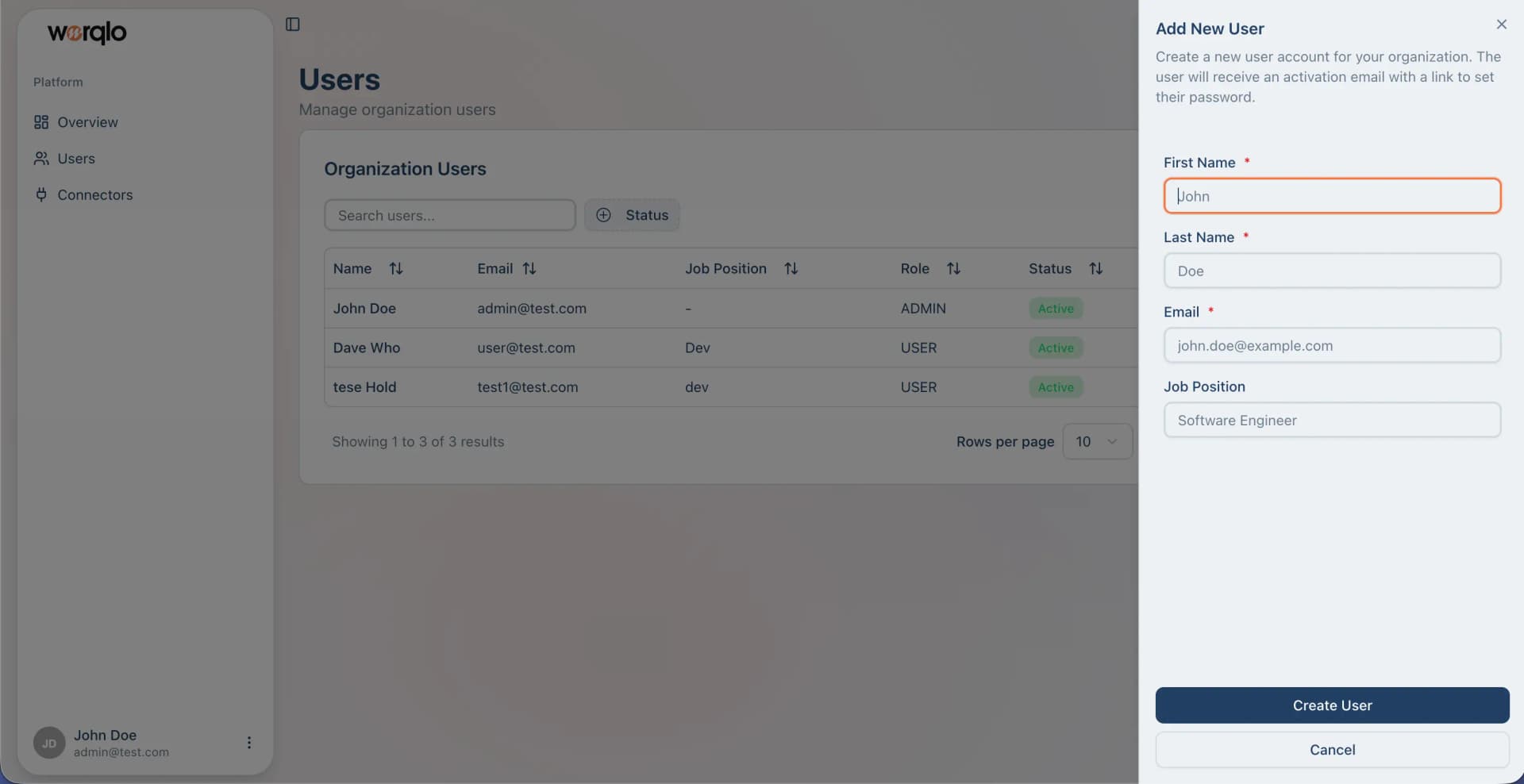
- Click the Add User button (top right)
- A sidebar form will appear on the right
-
Fill in the required fields:
- First Name * (required)
- Last Name * (required)
- Email * (required)
- Job Position (optional)
-
Click Create User
The new user will receive an activation email with a link to set their password.
User Roles
- ADMIN - Full access to all features and settings, including admin portal
- USER - Standard user access to conversations and data, redirected to chat interface after login
Next Steps
- Setting Up Connectors - Connect data sources
Last updated on